Now in beta · web and iPhone
All your money,
in one calm place.
Net worth, every charge, and the money you share with a partner, roommates or friends. Split it, talk it over, and ask Clara about it.
Free while it’s in beta. Works in any browser.
On iPhone? Join the TestFlight beta



Home
Where you stand,
in one number.
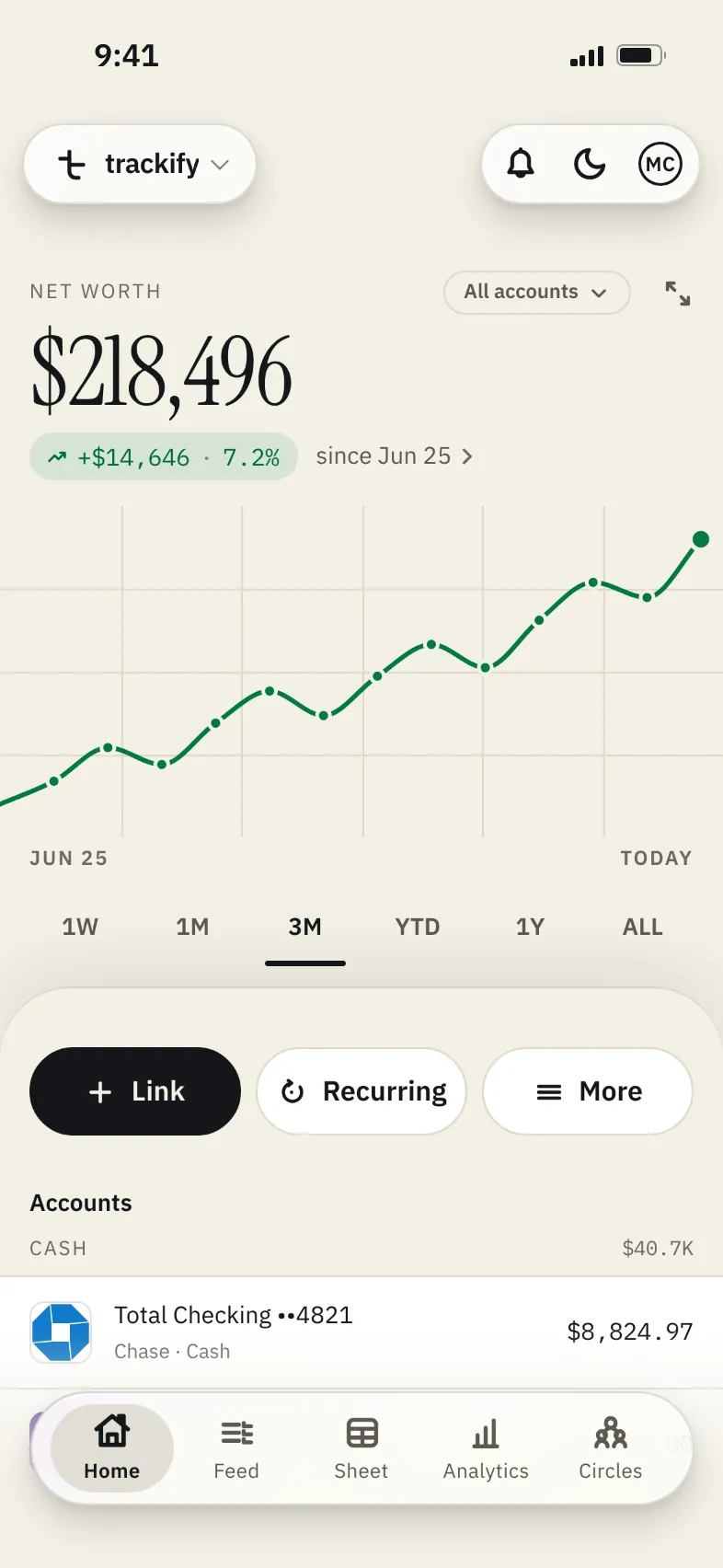
Checking, savings, every card, the brokerage, the 401(k) and what’s left on the car loan. It all adds up to one number, on a line you can drag back through.
-
Every account, one number
Banks, cards, investments and loans, added up for you. Or narrow it to one bank, or a circle you share.
-
Slide back through it
1W to ALL. Drag along the line to read it, or tap the change to see which accounts moved it.
-
Link, Recurring, More
Add another bank, see what repeats, or open More for goals, loans and statements.
-
Every account, sorted
Cash, investments, cards and loans, each with its total. Tap a card or checking account to see just its charges.
Money you share
Most money
isn’t only yours.
Groceries and the power bill with a partner. Rent with a roommate. A long weekend with four friends. trackify keeps track of who paid, who owes, and what everyone said about it.

Split a charge
Split it the way
it actually happened.
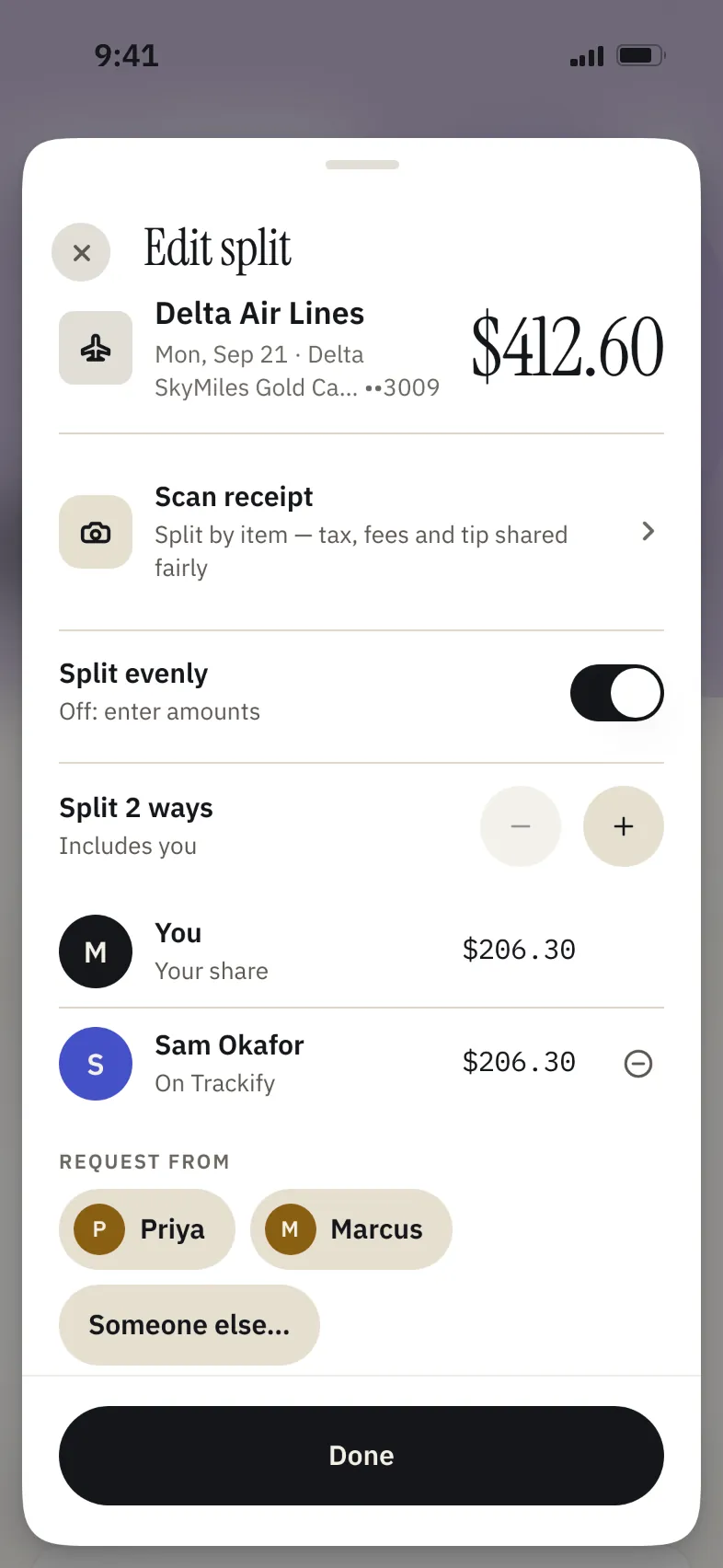
You put both flights home for Thanksgiving on your card. Open the Delta charge and tap Split. It opens on Split evenly, 2 ways, so all that’s left is who: tap Sam under Request from, then tap Request $206.30 from Sam. Sam gets a notification with their half.
- Split evenly for the flight. For brunch, scan the receipt, turn Split evenly off and tap what each person had, and tax, fees and tip follow. With no receipt, turning Split evenly off lets you type each amount.
- Shares add up to the penny, and a leftover cent stays with you, so nobody is asked for more than their share. Edit a split later and paid shares stay as they are.
- Friends without the app need an email or phone number, and you send them their link yourself. It opens in any browser with their share and what it covers, never the other people’s names or shares, and your Venmo, Cash App or PayPal with the amount filled in, if you’ve added them. Its one button reads “I’ve paid” and your name.
- When a Venmo, Zelle or Cash App payment for exactly someone’s share lands in your bank with their name on it, trackify checks that share off.
trackify keeps track of the split. The paying happens in Venmo, Cash App, PayPal or Zelle.
Comments
“Did you get the oat milk?”
Ask on the charge.
Sam sees your Whole Foods run and has one question. It goes on the charge itself, not into a group text that’s buried by Tuesday. You answer right there: two cartons, and the wine for Friday. In March, when nobody remembers, it’s still on the charge.
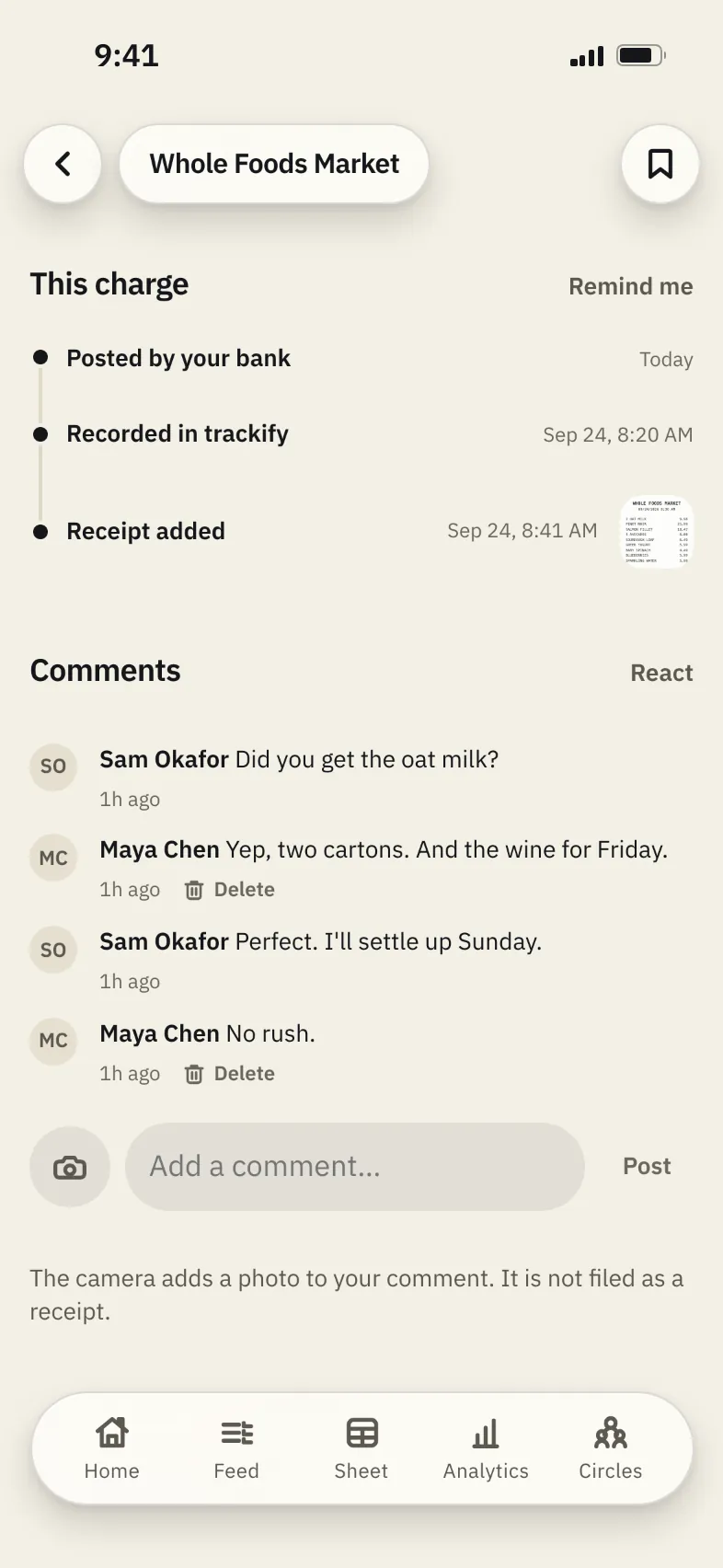

- Every charge has a comment thread for you and the people you share it with. The camera button adds a photo.
- Tap React for a thumbs up, a heart, a laugh, surprise, money or thanks.
- @mention someone and they get a notification that opens the thread.
- Every charge you’ve commented on collects in one list, so nothing gets lost.
No read receipts and no typing dots. It’s a note on the charge, not another group chat.
Circles
Six charges,
one number.
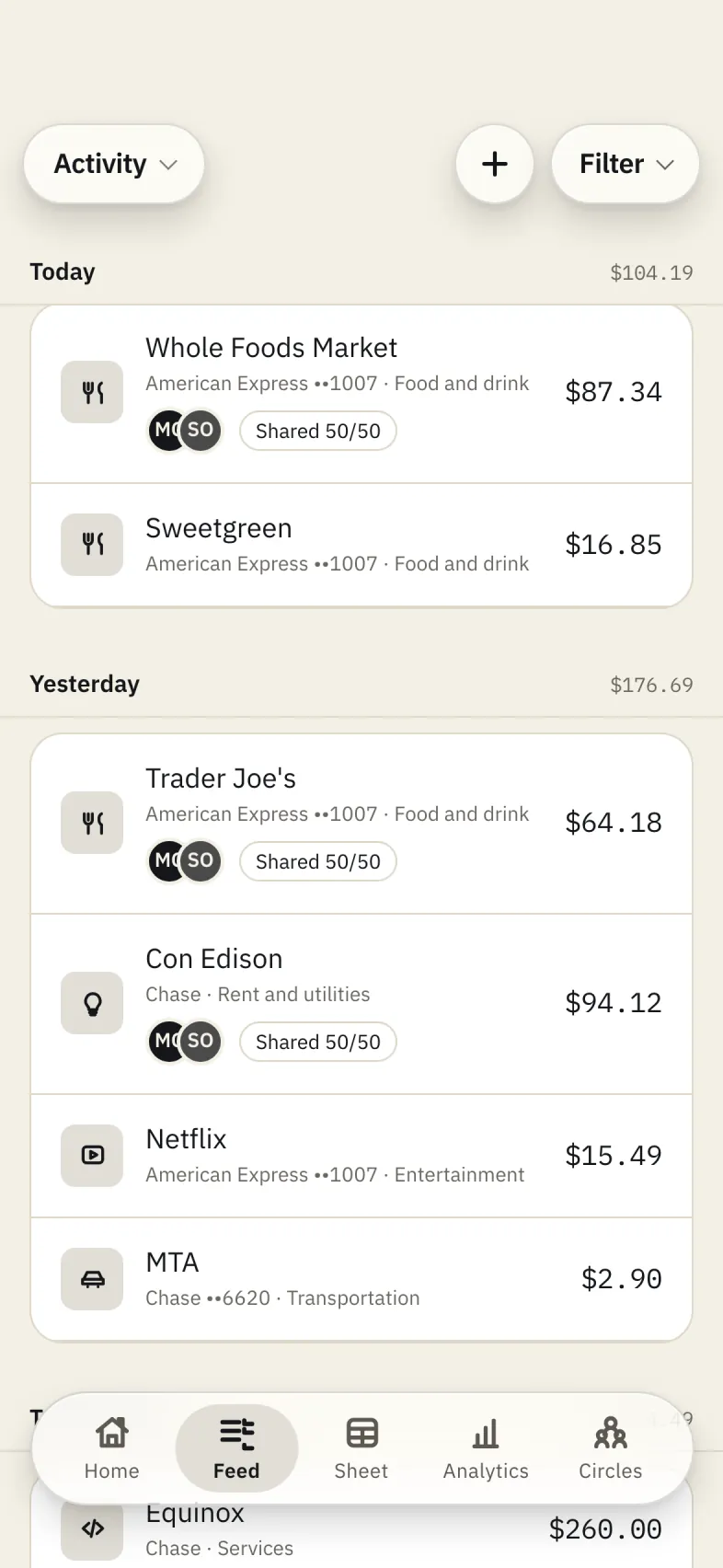
You and Sam tag groceries and the power bill 50/50 as they land. Circles keeps one running number between you. On Sunday that’s $184.38 and one Venmo, not an evening with a calculator.
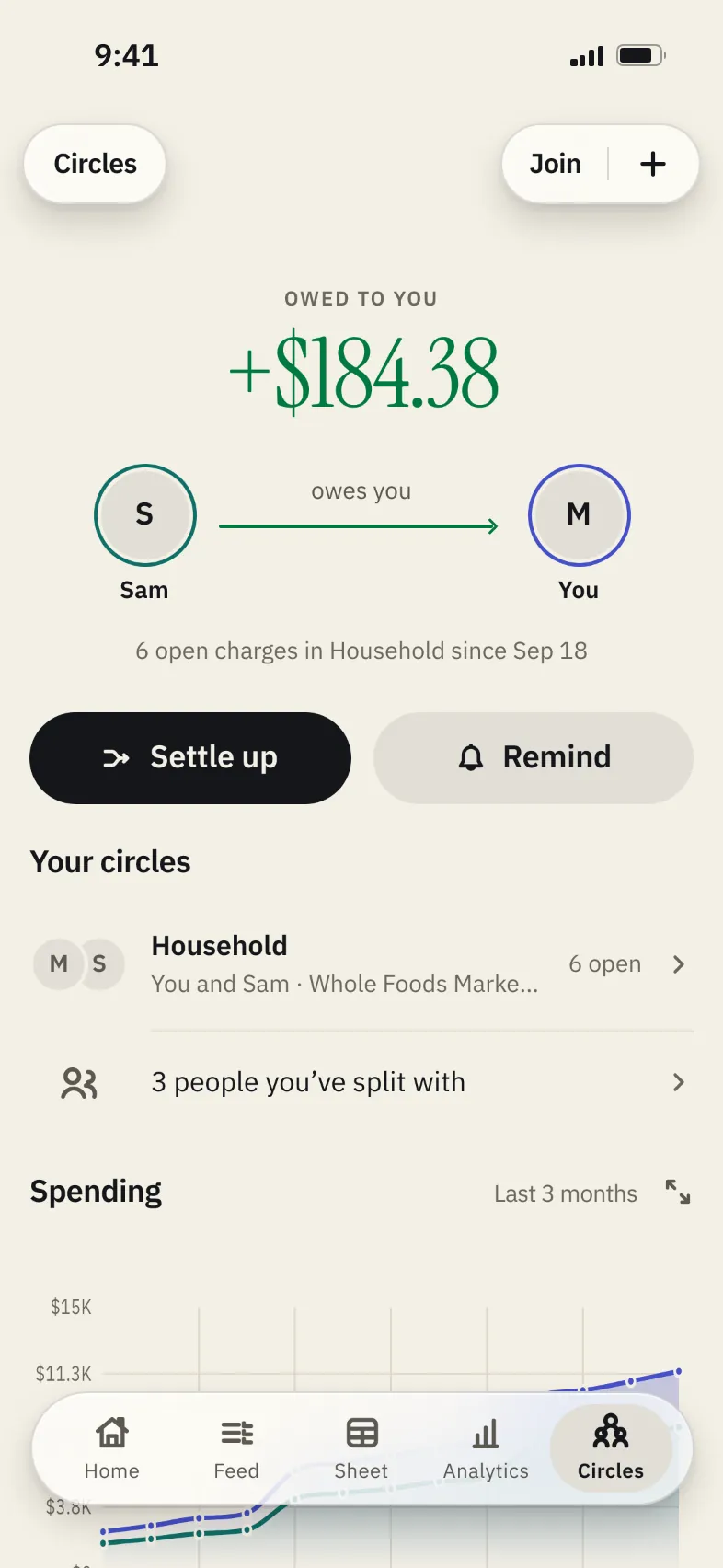

- See what you’re owed and what you owe, across every circle and friend, on one screen.
- Tap Settle up to record a payment, in full or in part. The oldest charges clear first, and Sam confirms it on their side.
- Tap Remind and trackify writes a friendly nudge. You send it yourself, from Messages or any app you share with.
A circle holds up to 10 people, and everyone signs its rules before anything is shared.
Sheets
Plan it in a sheet.
Fill it from your accounts.
You’ve started a budget spreadsheet before. It usually dies in week three, around the fortieth coffee you had to type in. Here, September is one sheet: what you planned for rent, groceries and the rest, what you spent, and what’s left, worked out by a formula you wrote. Import the month’s charges from your accounts, and you’re typing the plan, not forty coffees.
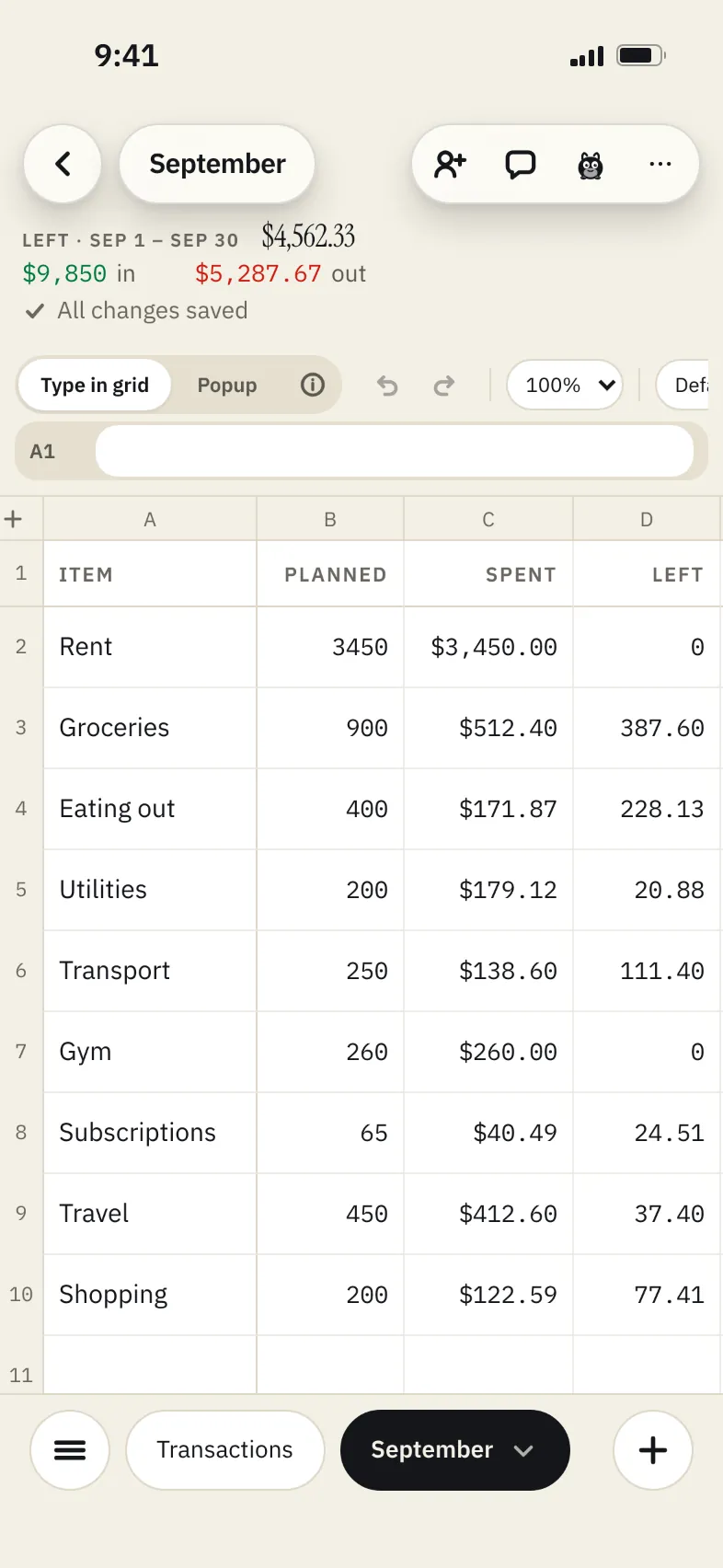

- Start from six free templates or a blank sheet, for a day, a week or a month.
- Import the period’s charges from your accounts, one row each.
- Formulas you already know: SUMIFS, XLOOKUP, IF, VLOOKUP and 85 more. Type = to see them all.
- Share a sheet with your circle. Everyone can comment, and Version history shows who changed what.
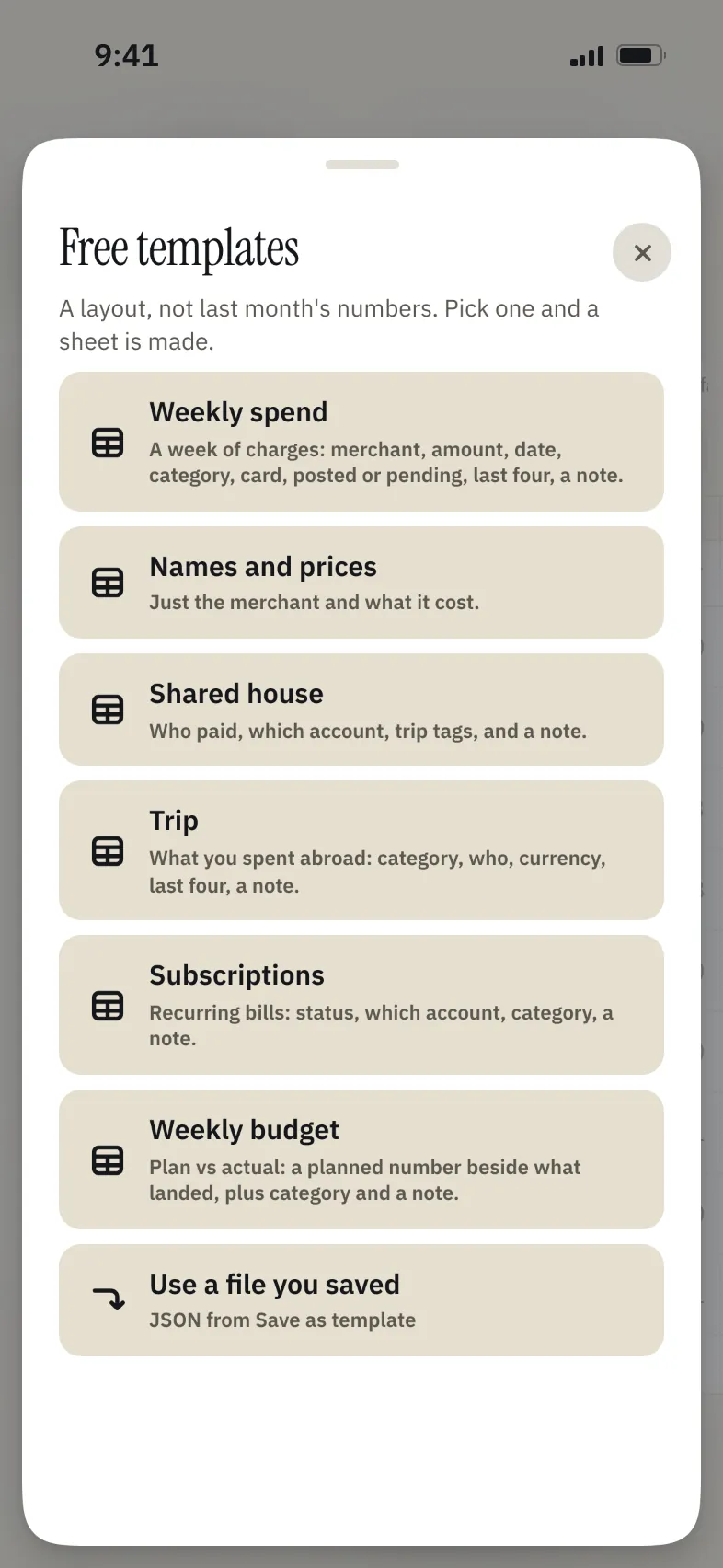

Start from a free template
A template carries the layout, never your numbers.
-
Weekly budget
What you planned, beside what landed, with a category and a note.
-
Weekly spend
A week of charges: where, how much, which card, posted or pending.
-
Shared house
Who paid, from which account, with labels and a note.
-
Trip
What you spent away, by person, currency and card.
-
Subscriptions
A row per bill: status, account, category and a note.
-
Names and prices
Just the merchant and what it cost.
Copy this month’s plan to next month. Import a CSV or Excel file. Save your layout as a template and send it to a friend. Connect a label like “Business” to a sheet, and every charge you tag with it lands there as a row. Ask Clara to draft a formula, then accept or decline it.
When your accountant asks for every charge on one card this year, filter the Transactions sheet to that card and export it to Excel, CSV or PDF. The Excel and PDF versions name the card at the top.
Clara
Ask Clara.
She shows her work.
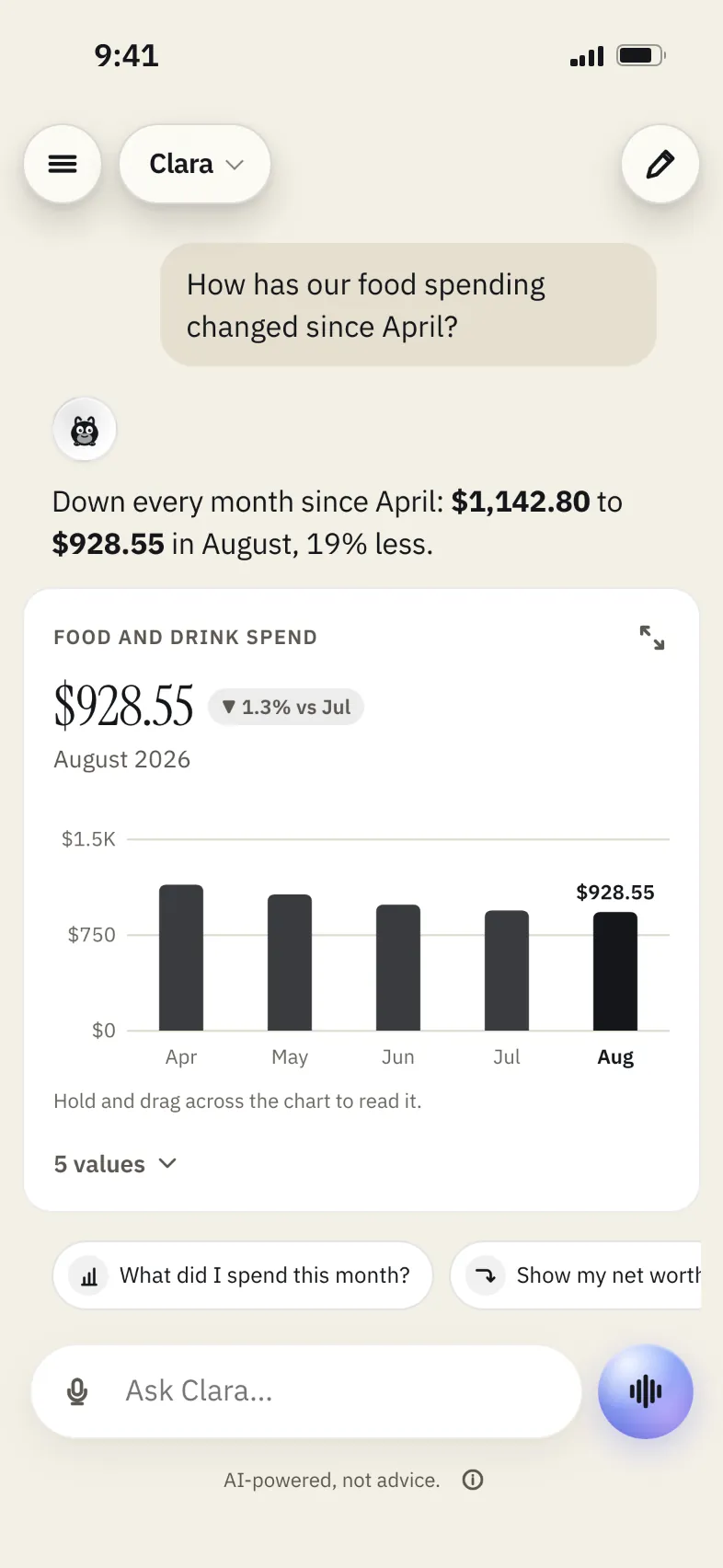
You wonder how much you and Sam have spent on food this month. Ask Clara. She answers with the total, $684.27 so far, and a table of where it went, merchant by merchant. Every dollar figure in her answer is checked against your accounts before you see it.
- What did I spend this month?
- Who owes me?
- What’s coming up in bills?
- Compare this month to last month
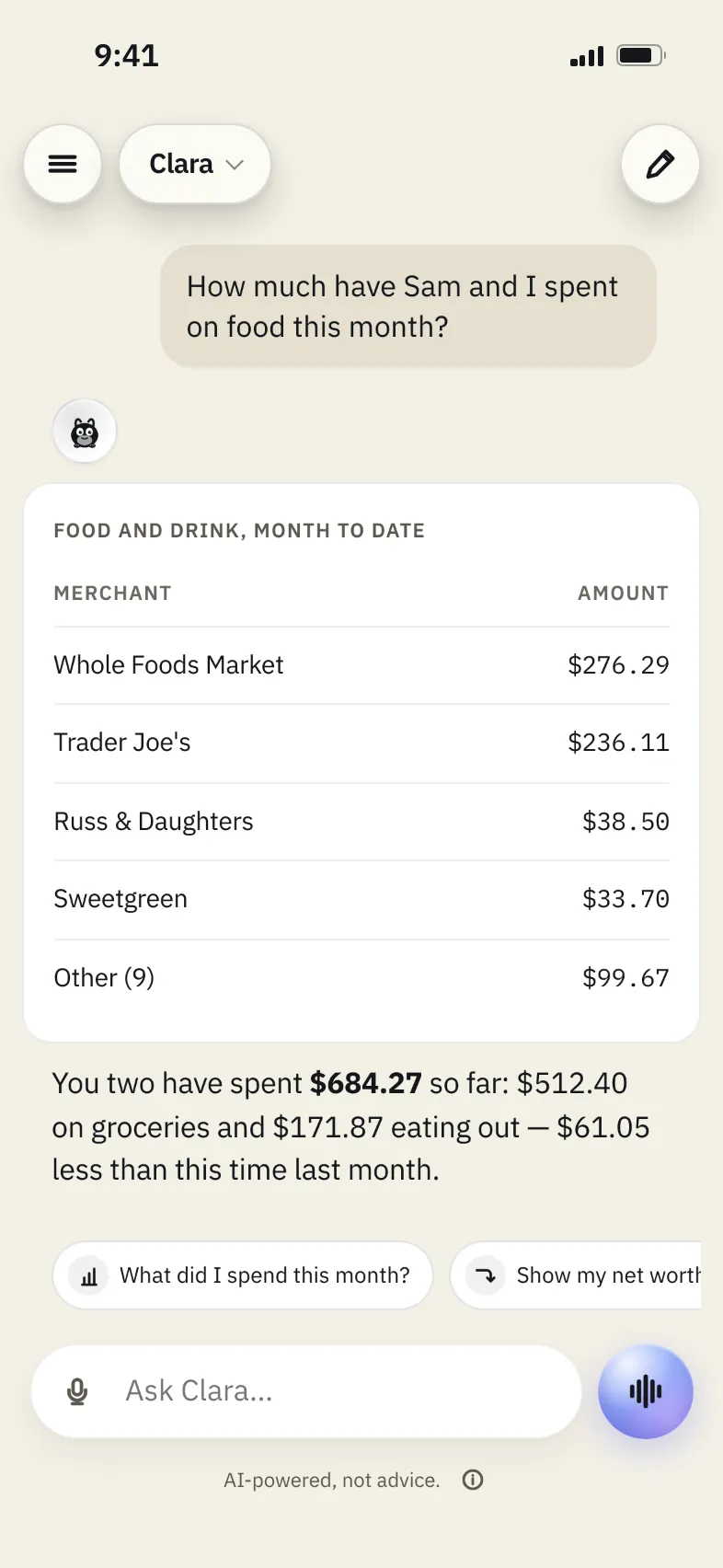

- Ask for a chart and she draws one. Hold and drag across it to read it, or open the values underneath.
- Tap the round voice button beside the box and just talk. She answers out loud, and you can tap to cut in.
- Ask her to set a food and drink limit or log what a friend owes you. She drafts it, and nothing happens until you tap Confirm.
- On any charge, tap Ask Clara about this charge and she opens with three questions about it, like why it’s that amount or who should pay.
AI-powered, not advice. Clara can’t move money, trade or cancel anything.
Your cards
Every card in your wallet,
in one feed.
The Chase Freedom for everyday, the Amex Gold for dinners out. Swipe through them at the top of the feed. Tap one, and the feed shows only its charges.
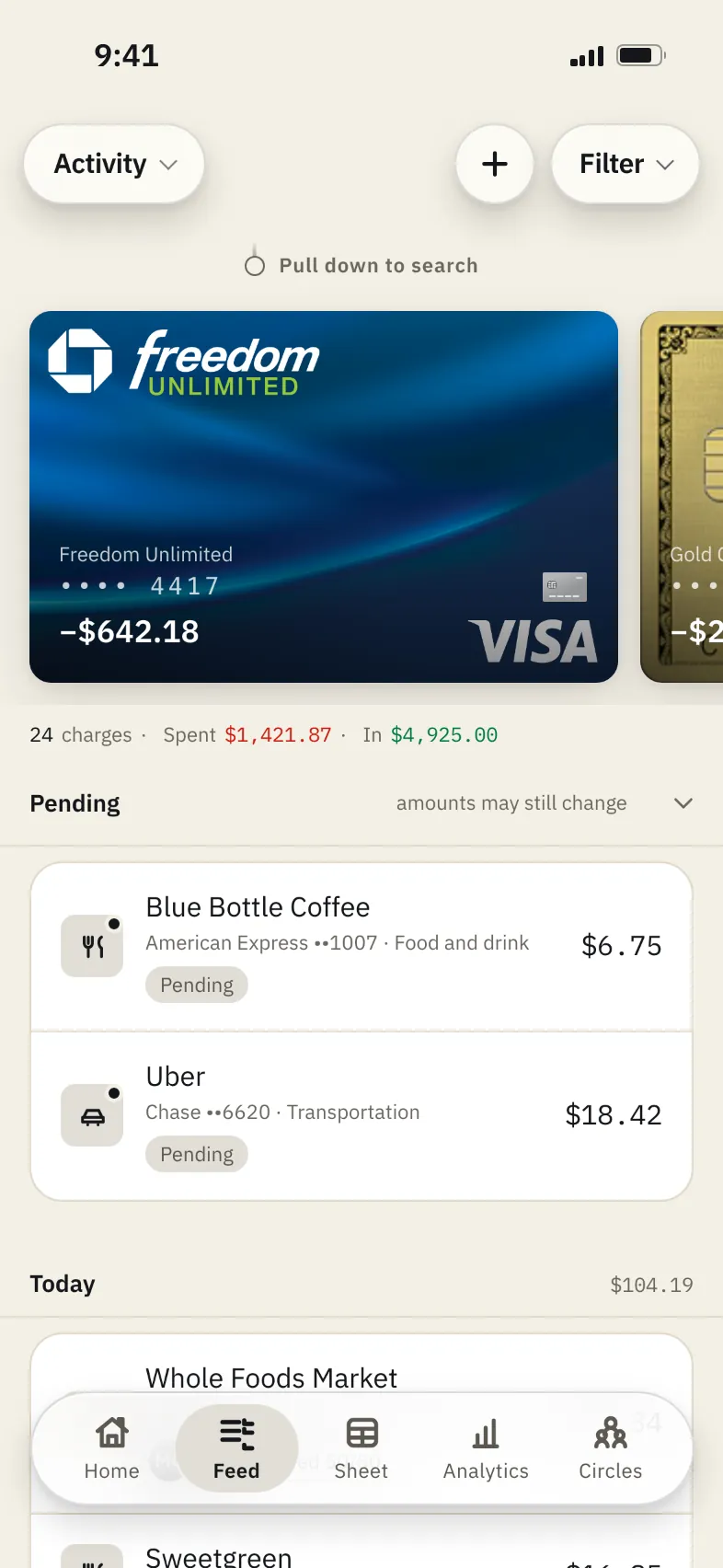

- Pick a card face that looks like the one in your wallet.
- Tap any charge for the logo, a map of where it happened, and whose it was.
- Pull down to search, or tap the mic and say the merchant.
- Pending charges are marked until they post.
Bills
See Friday’s bills
on Monday.
A calendar of this week shows what comes out each day, so Spotify on Friday doesn’t sneak up on you. And the rent you split with a roommate? Mark it split once, and it splits itself every month it lands.
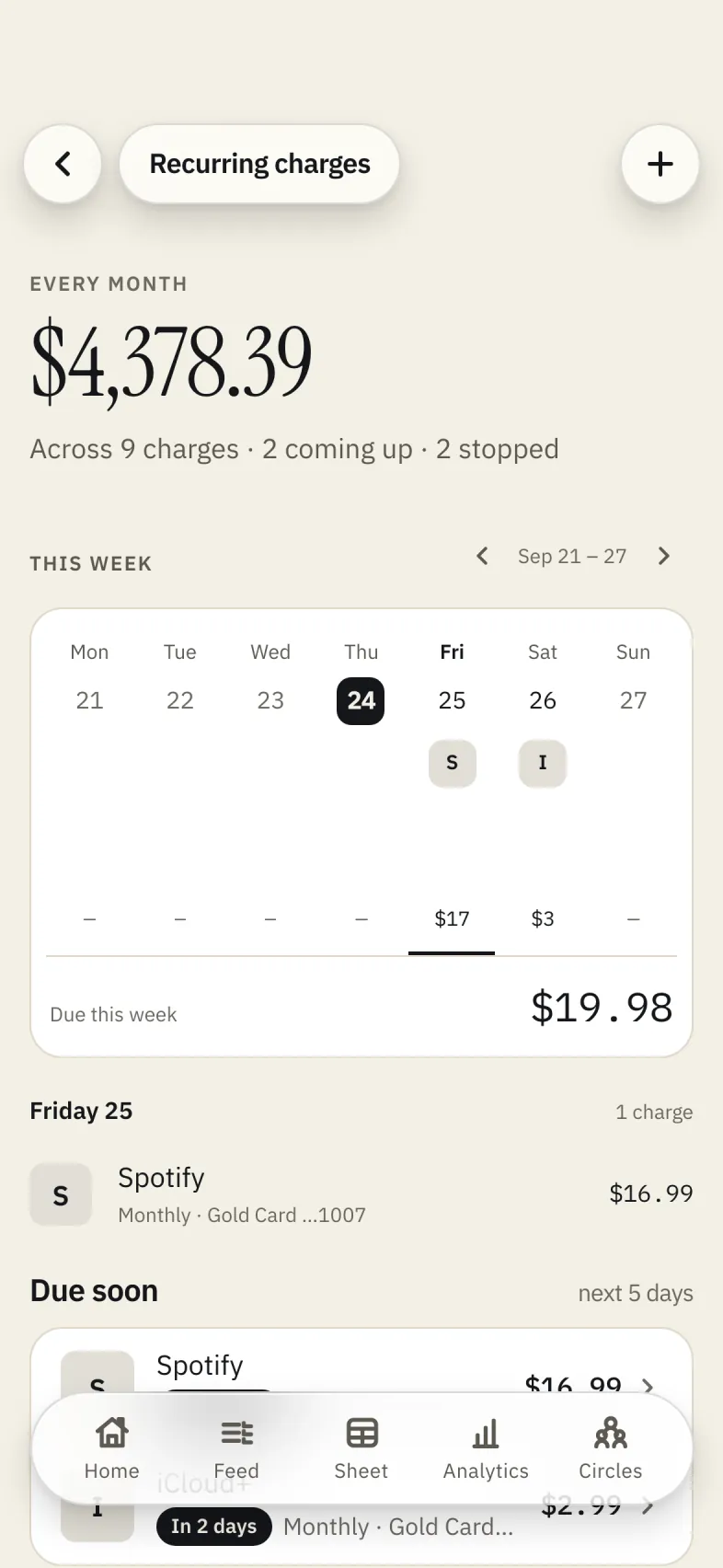

- Every subscription and bill in one list: what each one charges, how often, and one monthly total at the top.
- Add a bill yourself, or save one trackify found, and turn on a reminder for the morning before it’s due.
- A heads-up when a subscription’s price changes.
- Split a bill once, and people in your circle get a reminder the day before, with just their share.
Nine more
The rest,
in a sentence each.
-
Tag from the lock screen
Long-press a new-charge alert to tag it without opening the app.
-
IOUs with just a name
Lent a friend $40? Log it with a name and a due date, and trackify reminds you.
-
Where it went
Spending by category, merchant, account or person.
-
Spending limits
Set a monthly cap on food and drink and hear about it when you go over.
-
Goals
Name it, date it, and see each month if the date still holds.
-
Loan payoff
See when a loan is paid off, and what a little extra each month changes.
-
Investments, read-only
Brokerage, 401(k) and IRA positions, and what went in this year.
-
Monthly statements
A PDF of each finished month, made on the 1st.
-
Widgets and Face ID
Net worth on your Home Screen, and Face ID to open the app.
How it works
Three steps,
then it’s yours.
-
Create an account
Sign up with your email in any browser, then link your first bank through Plaid. Your accounts and charges come in on their own.
-
Add the iPhone app
Join the TestFlight beta, open the link we send you and tap Install with TestFlight. Sign in with the same account.
-
Tell us what to build
Vote and suggest on the public feature board. The person who builds trackify reads it.
Privacy
Read-only,
by design.
-
Your bank login stays with your bank
Accounts connect through Plaid. Your login goes to Plaid and your bank, not to trackify’s servers.
-
It can look, not touch
trackify reads balances and charges. It can’t pay, transfer or trade a cent.
-
Your data isn’t for sale
No ads, and we don’t sell your data. The privacy policy says what we collect and why.
-
Leave whenever you like
Delete your account and data from Settings at any time. If you can’t open the app, ask us by email.
FAQ
Before you
sign up.
Is it free?
Yes, while it’s in beta.
Can I use it on my computer?
Yes. Create an account here and sign in from any browser. The same account signs in to the iPhone app.
What’s TestFlight?
Apple’s own app for testing betas. Get TestFlight from the App Store, then open your confirmation link, tap Confirm my spot, and tap Install with TestFlight. trackify installs like any other app.
Do my friends need trackify to split with me?
No. Add their name and their email or phone number, since a split needs one of the two. Then send them their link from your phone. It opens in any browser and shows their share, what it covers and the receipt if you scanned one, but never the other people’s names or shares. The button that reads “I’ve paid” and your name checks them off on your side. When they join trackify with that email or phone, new splits and shared bills reach them in the app. To comment on charges or join a circle, they’ll need the app.
Can trackify send or collect money?
No. It keeps track of who owes whom and records it when you settle up. The paying happens in Venmo, Cash App, PayPal or Zelle, and your handles show up on every link you send, if you’ve added them.
How fast do new charges show up?
Charges come in when your bank reports them through Plaid, which can take anywhere from a few hours to about a day. Pending charges are marked until they post.
Which banks and cards work?
If Plaid supports it, trackify can link it: checking, savings, credit cards, brokerages, 401(k)s, IRAs, HSAs, mortgages, and student, auto and home-equity loans. For anything else, import a CSV or add an account by hand. Apple Card comes in through its CSV export.
What can people in my circle see?
You pick which of your accounts a circle can see. The circle’s rules say whether members see balances, charges or both, and investment positions are a separate switch that starts off. Everyone signs the rules before anything is shared, and any change to them means everyone signs again.
Is Clara a financial advisor?
No. Clara answers questions about your own accounts and can draft things like a reminder, an IOU or a spending limit, which only happen after you tap Confirm. She can’t move money or trade, and her answers can be wrong. AI-powered, not advice.
Something else? support@jfmcapital.com
Bring the person
you split rent with.
Free while it’s in beta. In your browser today, and on iPhone through TestFlight.